TV setup guide

Install Aircaster on your TV.

Fire TV first, Android TV below. About 5 minutes the first time — after that it’s just updates.

Already use Downloader?

Press # and enter the code:

2736615

…or type get.aircaster.app — same signed APK either way. Short link: aftv.news/2736615. New to this? Follow the steps below.

Choose your route

The first step depends on your TV.

Fire OS and Google TV use different stores to get Downloader, but both install the same signed Aircaster APK.

Fire TV / Fire OS

  1. Amazon Appstore
  2. Downloader by AFTVnews
  3. Aircaster APK
  4. Fire OS installer

Google TV / Android TV

  1. Google Play
  2. Downloader by AFTVnews
  3. Aircaster APK
  4. Android installer

The store installs Downloader. Downloader gets the signed Aircaster APK. Your TV’s system installer installs Aircaster.

Aircaster is not listed in Amazon Appstore or Google Play today. Search for Downloader by AFTVnews, not Aircaster.

Can’t get Downloader?
If your TV still supports sideloading, use the advanced ADB method from a computer. If the TV cannot install Android APKs, install Aircaster on your Android phone and cast instead — do not try to bypass the device restriction.

Fire TV

Fire TV, step by step

Get Downloader by AFTVnews from Amazon Appstore, then use it to retrieve the signed Aircaster APK. Follow the steps in order.

⚠️ Check your Fire TV first

Most Fire OS 7 and Fire OS 8 devices support sideloading, but model and firmware policies can change. The real requirement is an available Install Unknown Apps setting.

Aircaster’s Android APK does not run on Vega OS models, including Fire TV Stick 4K Select (2025) and Fire TV Stick HD (2026). It also cannot install on Fire OS models that hide or block unknown-app installation.

Not sure which you have? On your Fire TV go to SettingsMy Fire TVAbout, then unlock Developer Options. Continue only if Install Unknown Apps appears and lets you enable Downloader.

  1. Unlock Developer Options

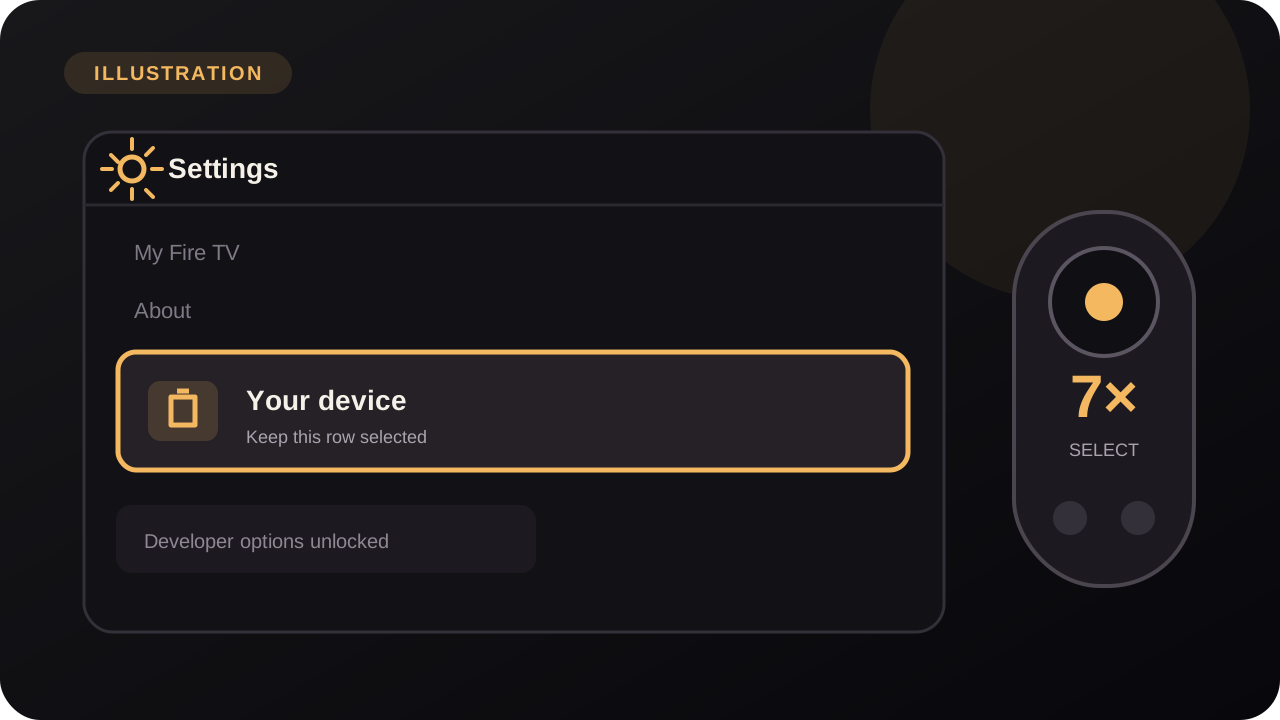
    Go to SettingsMy Fire TVAbout, then select your device name and click it 7 times until it says developer options are unlocked.

    Illustration — menu appearance may vary by Fire TV model and Fire OS version.
  2. Allow installs from Downloader

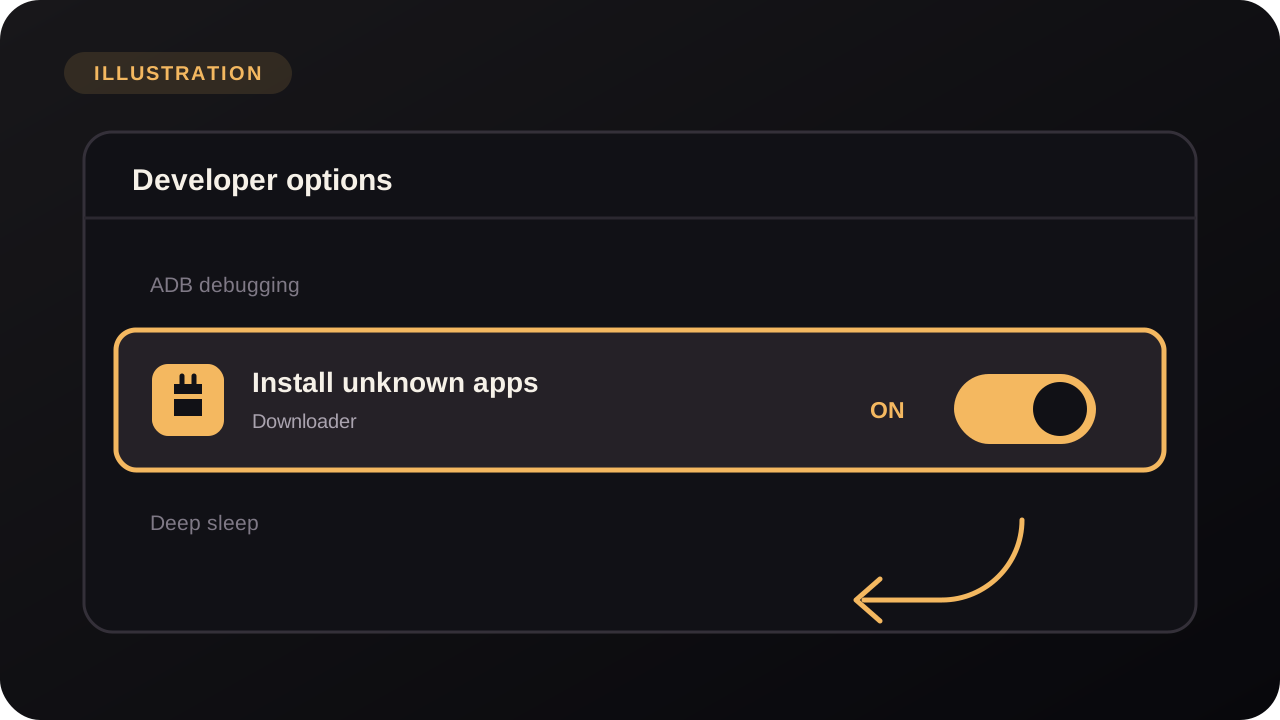
    Go to SettingsMy Fire TVDeveloper Options and enable Apps from Unknown Sources. On newer menus this is Install Unknown Apps → turn it on for Downloader.

    Illustration — menu appearance may vary by Fire TV model and Fire OS version.
  3. Install the Downloader app

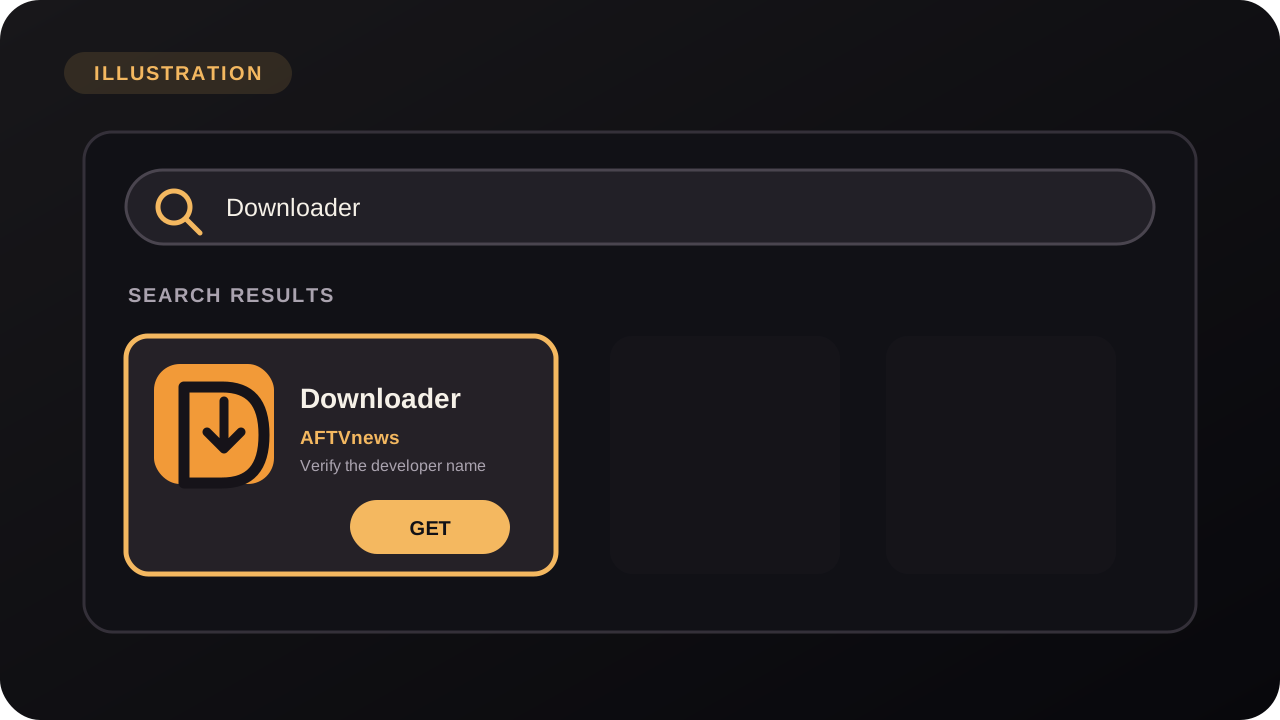
    From the Fire TV home screen, search for “Downloader”, install the official app by AFTVnews, open it, and allow file access if prompted.

    Illustration — menu appearance may vary by Fire TV model and Fire OS version.
  4. Enter the Aircaster address

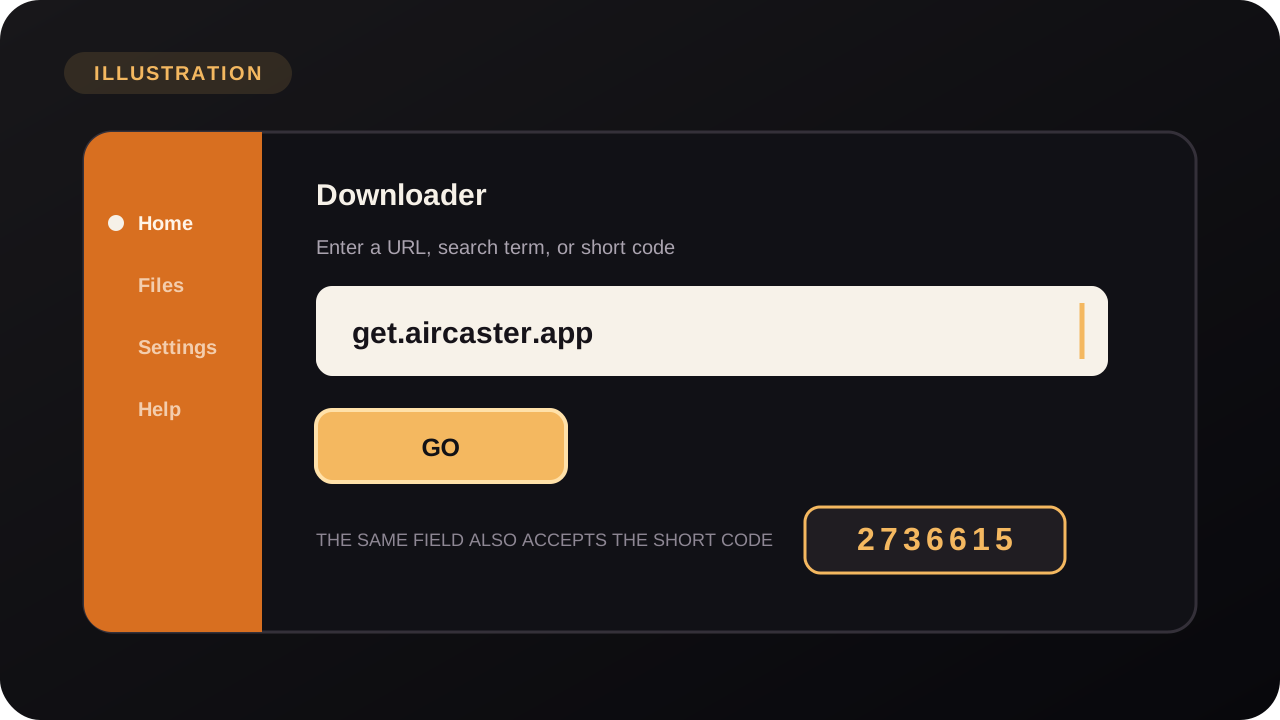
    In the Downloader address bar, type get.aircaster.app (or press # and enter the code 2736615) and press Go.

    Illustration — menu appearance may vary by Fire TV model and Fire OS version.
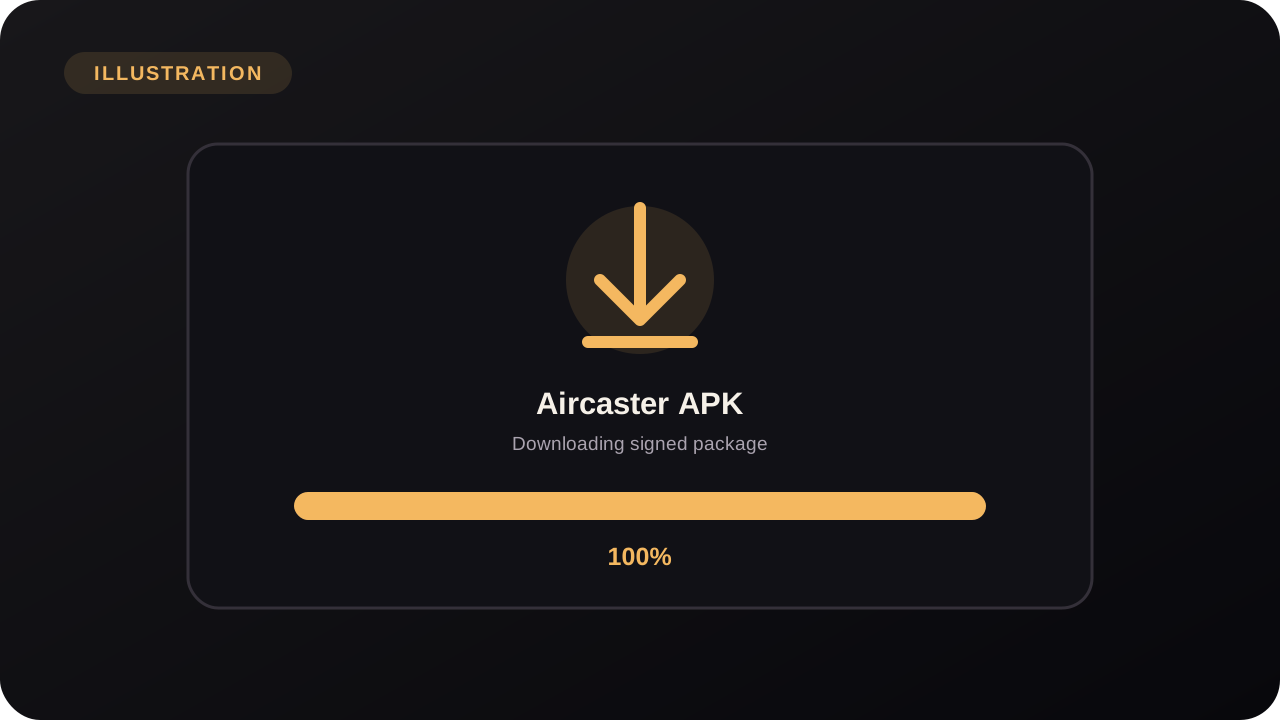
  5. Wait for the download

    Downloader fetches the signed Aircaster APK. Let it finish.

    Illustration — menu appearance may vary by Fire TV model and Fire OS version.
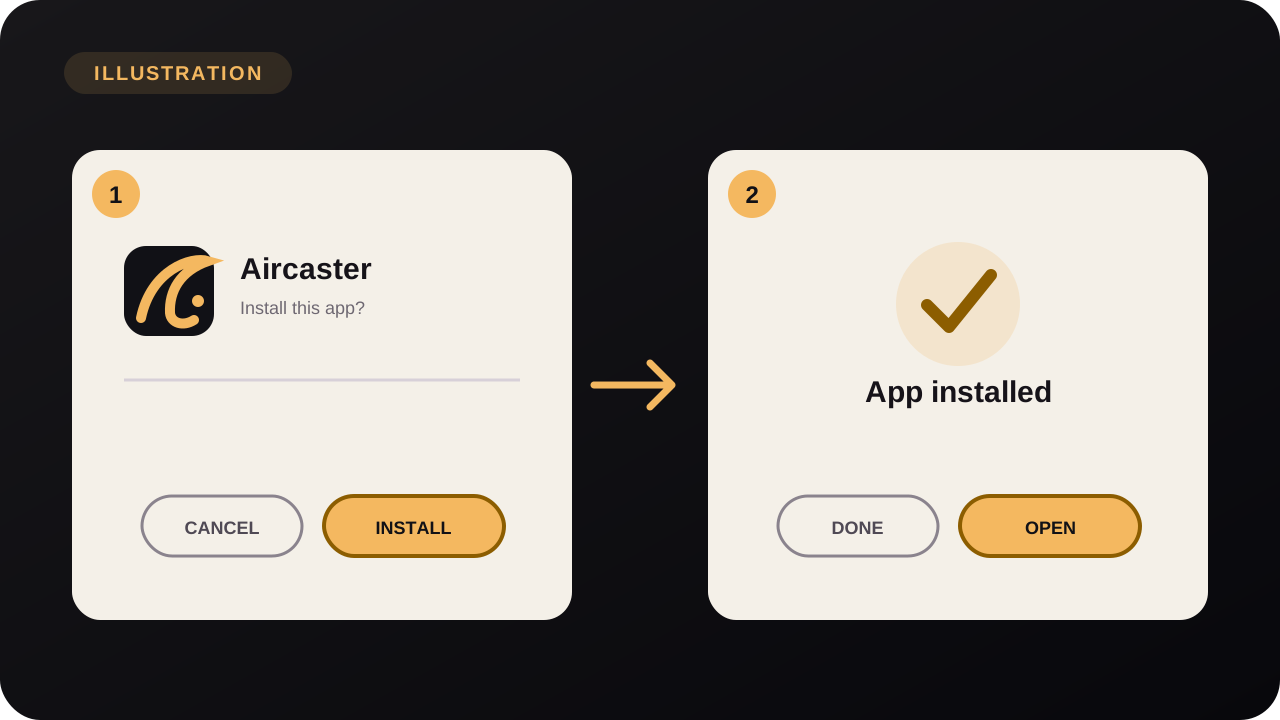
  6. Install Aircaster

    When the installer appears, select Install, then Done (or Open to launch Aircaster right away).

    Illustration — menu appearance may vary by Fire TV model and Fire OS version.
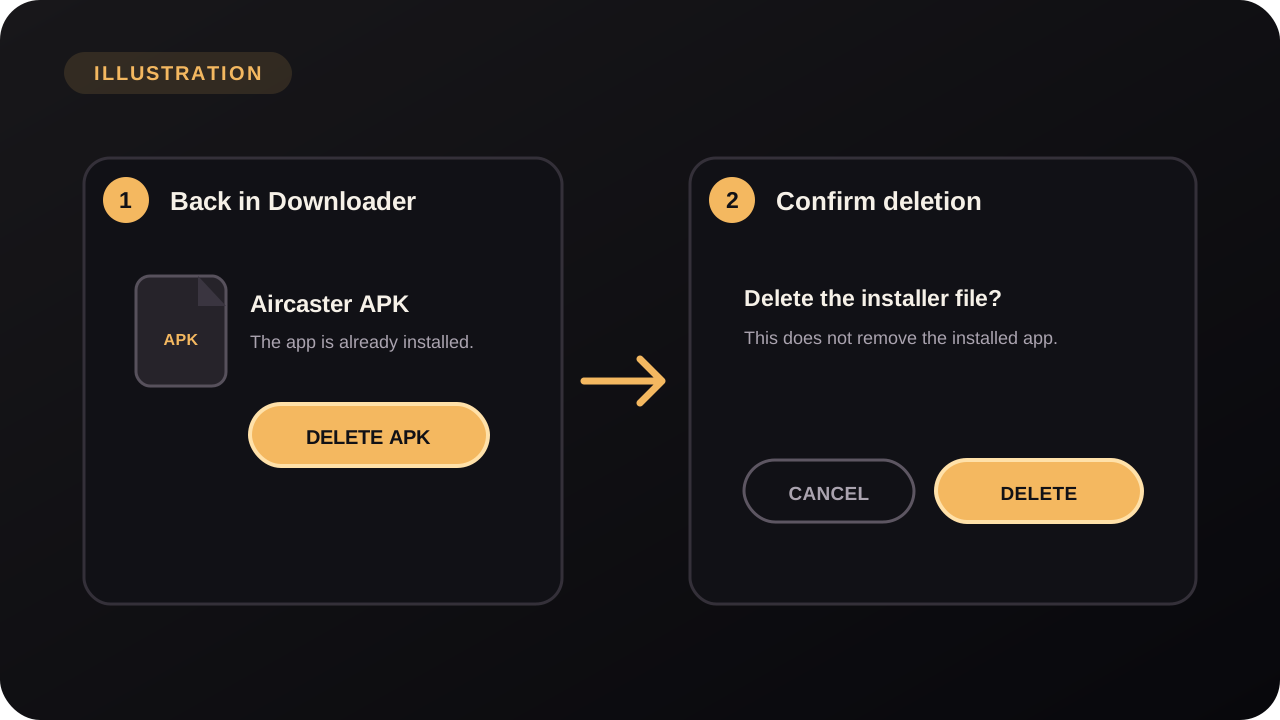
  7. Clean up (optional)

    Back in Downloader, choose Delete, then confirm Delete again to remove the APK file and free space. You can also turn Apps from Unknown Sources back off now that you’re done.

    Illustration — menu appearance may vary by Fire TV model and Fire OS version.

Fire TV troubleshooting

Download failed in Downloader
Check that Apps from Unknown Sources is enabled (step 2), that the device has free storage, and that any VPN isn’t blocking the redirect domain. Re-enter get.aircaster.app and try again.
Can’t type the URL on the remote
Use the numeric Downloader code instead: open Downloader, press the # number-pad button to the right of the address bar, and enter the code 2736615. No dots or slashes needed.
“Install” button is greyed out
That means installs from unknown sources are still blocked. Go back to Developer Options and re-enable Apps from Unknown Sources for Downloader, then run the download again.
It says my device isn’t supported
Your Fire TV Stick may run Vega OS, which uses a different app package format and cannot run Aircaster’s Android APK. See the compatibility note at the top of this page and use Aircaster on your Android phone to cast instead.

Android TV & Google TV

Android TV, the same idea

Works on Google TV and Android TV sets (Sony, TCL, Philips, Hisense), Chromecast with Google TV, NVIDIA Shield, Xiaomi/Mi Box and other boxes running Android TV 9 or newer.

Google Play installs Downloader by AFTVnews, not Aircaster. Open Downloader, then enter:

get.aircaster.app
  1. Install Downloader from the Play Store

    Open the Play Store on your TV and install Downloader (by AFTVnews).

  2. Allow installs from unknown sources

    The menu name varies by brand:

    • Google TV / newer Android TV: Settings → System → About → tap Android TV OS build 7 times to unlock developer mode → back → Apps → Security & restrictions → Unknown sources → allow Downloader.
    • Older Android TV: Settings → Device Preferences → Security & restrictions → Unknown sources → enable Downloader.
    • NVIDIA Shield: Settings → Device Preferences → Security & restrictions → Unknown sources.
  3. Download and install

    Open Downloader, type get.aircaster.app and press Go. When the APK finishes, choose Install, then Open. (Optional) Turn the “unknown sources” permission back off afterwards.

Advanced fallback: install from a computer with ADB
Download the signed APK to your computer, enable Developer Options and ADB debugging on the TV, connect to the TV using its platform’s wireless ADB flow, then run adb install aircaster.apk. This works only on devices that still allow sideloading.

Apple TV, Roku, Samsung, LG…

No install needed — just cast

These TVs don’t run Android apps, and they don’t need to. Install Aircaster on your phone, start playing, and cast to the TV. The phone stays your remote.

Which TV uses which cast method?

  • Apple TV — AirPlay (built in).
  • Samsung (Tizen) & LG (webOS) — DLNA / UPnP; many recent sets also support AirPlay 2.
  • Roku — AirPlay 2 on supported models (Roku can’t receive DLNA casts).
  • Chromecast & Chromecast built-in TVs — Google Cast.
  • Any DLNA-capable TV or receiver — DLNA / UPnP.

Phone and TV must be on the same Wi-Fi network. In Aircaster, open a channel or title, tap the Cast icon, and pick your TV from the list.

Get the phone app →